
Snack Video Downloader without Watermark Free Online, HD, MP4, MP3
You found a video on SnackVideo, and you want to save it without a watermark. You can download a video in just few steps, there is no need to install extra app or need to record the screen. Just copy the video link, paste it into our snackvideo downloader, select the preferred download option, and save the video directly to your device.
We have provided you with a full walkthrough on how you can download the video for Android, iPhone, iPad, and PC. You only need to follow the method we discuss below, and you can save the video to your device quickly without any unnecessary steps.
How to Download SnackVideo Without a Watermark
Copy the SnackVideo link, paste it into our downloader, and choose the format options. Once processed, tap Download to save the video to your device. Follow the steps below for a smoother process.
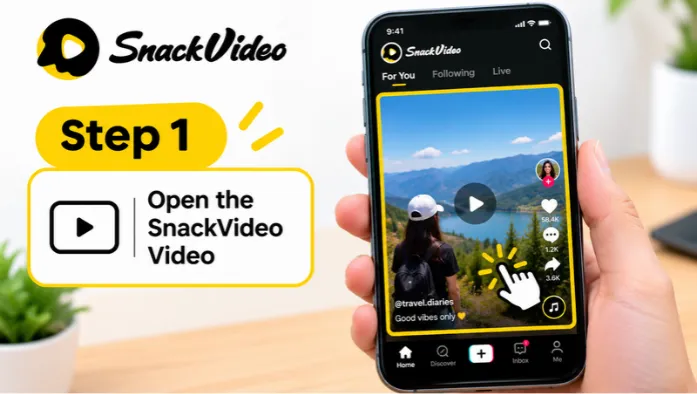
Step 1: Open the SnackVideo Video
Open the SnackVideo app or website and find the video you want to save. Make sure the video is publicly accessible. Private or unavailable videos may not work with the SnackVideo downloader.
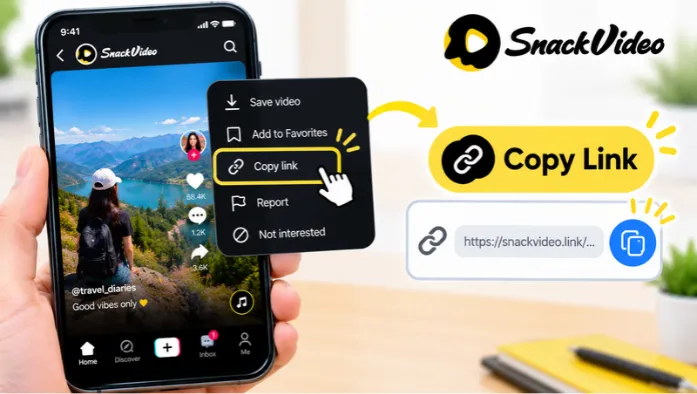
Step 2: Copy the Video Link
Tap the Share button below or beside the video and select Copy Link. SnackVideo’s own help section confirms that videos can be downloaded through its video controls, while the copied link is what an online downloader uses to process a public video.
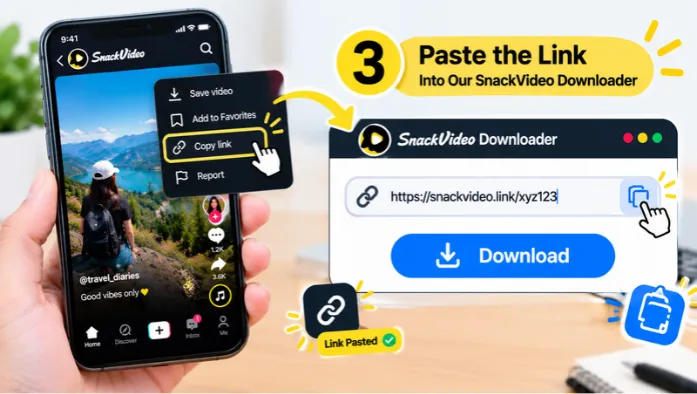
Step 3: Paste the Link Into Our SnackVideo Downloader
Return to our SnackVideo downloader and paste the copied link into the input box. The tool reads the public video link and prepares the available download options.
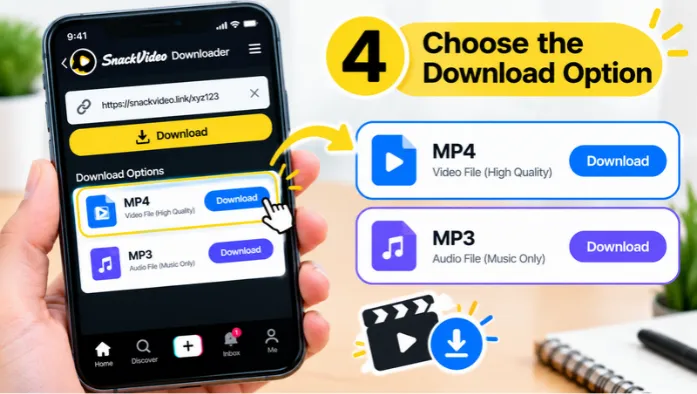
Step 4: Choose the Download Option
After the video is processed, select the available video download option. Depending on the source and the tool’s supported options, the available quality can vary based on the original uploaded video.
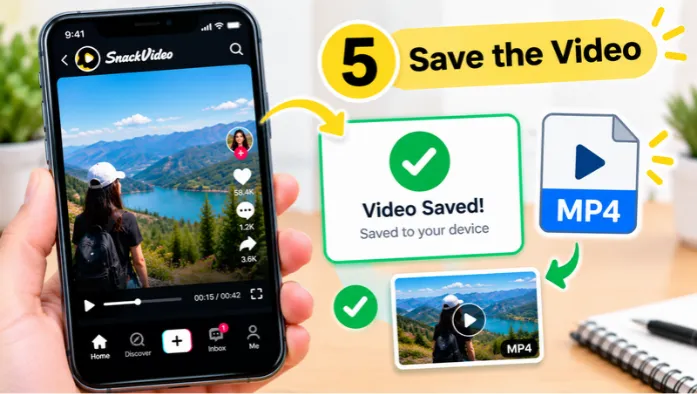
Step 5: Save the Video
Click or tap Download and wait for your browser to finish saving the file. Once complete, you can find the video in your device’s Downloads folder, gallery, or the location selected by your browser.
Why Use an Online SnackVideo Downloader?
Instead of installing a separate application, the downloader works directly inside your browser. You only need the public SnackVideo link.
This means you can use the same basic process on different devices, including:
SnackVideo itself is a platform for watching and sharing short-form video content, while its official support pages provide video, creator, account, and other help categories.
Our downloader is designed for users who simply want a quick way to Download snack video and save the available file without installing additional software.
Download SnackVideo Without Watermark on Android
Android users can complete the entire process in a few minutes.
Your browser will normally save the file to the Downloads folder. Depending on your phone and browser settings, you may also be able to access it through your Gallery or Files app.
No separate downloader app is required.
Download SnackVideo Without Watermark on iPhone and iPad
The process is almost the same on iOS. First, copy the link from the SnackVideo video you want to save. Then open Safari or another supported browser and paste the link into our downloader. After processing, select the download option and follow the browser’s normal save process.
The exact location where the file appears can depend on your iPhone, iPad, browser, and iOS settings. If the download does not immediately appear in your Photos app, check the Downloads section in your Files app.
Download SnackVideo Videos on a PC
Using a computer is just as simple. Open SnackVideo in your browser and copy the URL of the public video. Then open our SnackVideo downloader, paste the link, and start processing.
Once the download is ready, save the file to your computer. On most Windows and Mac browsers, the video will appear in the default Downloads folder unless you have selected a different location.
Do You Need to Install an App?
No. Our SnackVideo downloader is browser-based, so there is no separate APK, desktop program, browser extension, or additional software required.
You simply need:
Copy the link, paste it into the tool, and download the available file. Keeping the process browser-based also means you can switch between your phone, tablet, or computer without learning a completely different method.
What if the SnackVideo Link Does Not Work?
Sometimes a video link may fail to process. This does not always mean there is a problem with your device. Here are a few things to check.
Copy the Link Again
Go back to SnackVideo, open the video, and use the Share option to copy the link again. An incomplete or incorrectly copied URL may not be recognized.
Check Whether the Video Is Public
Go back to SnackVideo, open the video, and use the Share option to copy the link again. An incomplete or incorrectly copied URL may not be recognized.
Check Your Internet Connection
A slow or unstable connection can interrupt processing or downloading. Try refreshing the page and pasting the link again.
Try a Different Browser
If the download button does not respond, your browser settings, extensions, or download permissions may be interfering with the process. Trying Chrome, Safari, Edge, Firefox, or another updated browser may help.
Why Does the Original SnackVideo Download Have a Watermark?
Watermarks are commonly used by social platforms to identify the source of shared content.
If you are saving your own SnackVideo content for editing, backup, or posting elsewhere, a clean version may be more convenient.
However, downloading a clean copy does not give you ownership of someone else’s work. The original creator may still hold rights over the video and its content.
Frequently Asked Questions
Conclusion
Downloading SnackVideo without a watermark does not require any complicated steps. If you have a public link to the video, then the process is straightforward. You already have the link; paste it into our downloader and choose the download options.
There is no need to install any different software or no need to switch between different apps. Whether you are using Android, iPhone, iPad or Windows system the same method work on all device.